Work Orders
Create, update, and manage work orders entirely by voice. No keyboards, no clicking through menus — just tell Tuty what you need.
How Work Orders Work
Work orders are the backbone of your shop. With Tuty, you can create a full work order — customer, vehicle, tires, services, and estimate — in a single conversation. Here's the typical flow.
Start the Work Order
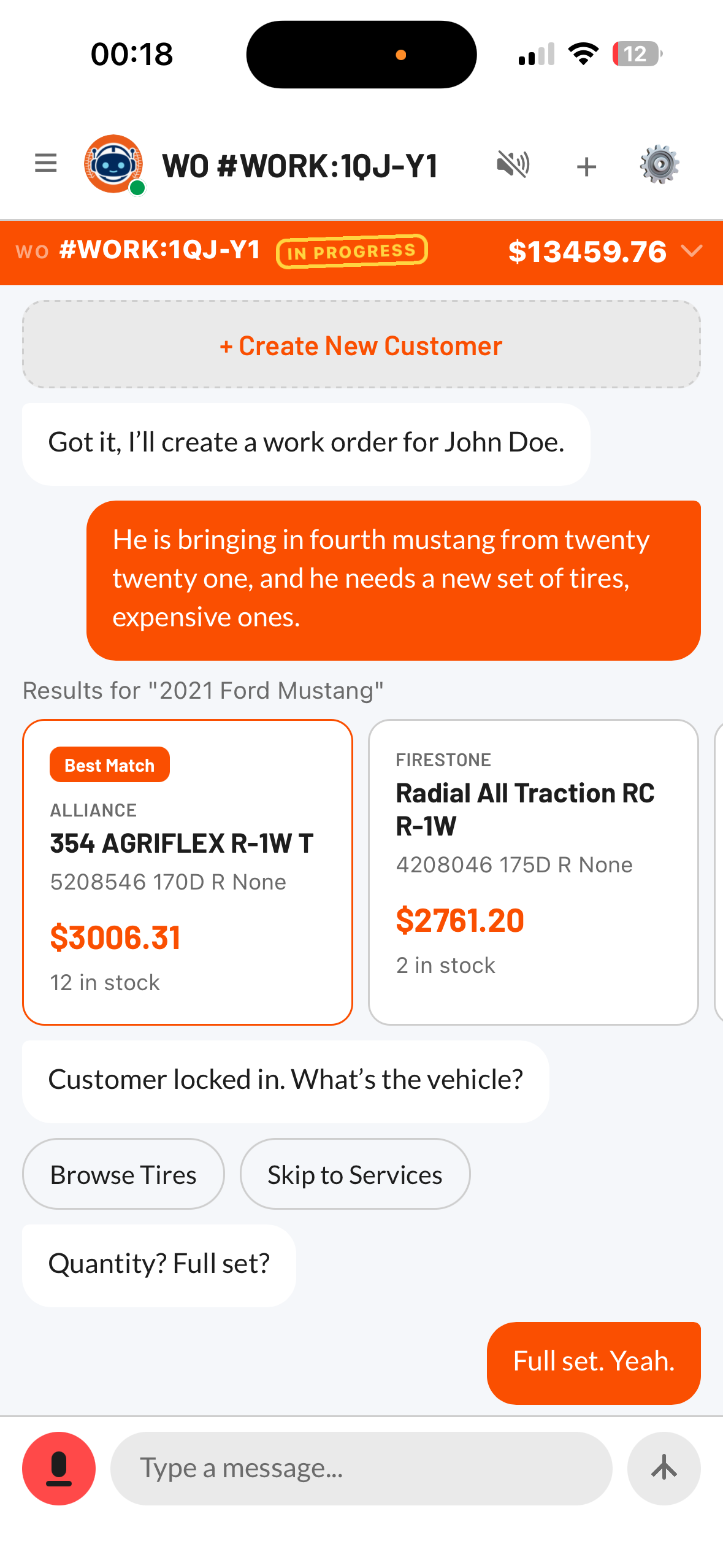
Tell Tuty to create a work order. Include as much detail as you have — customer name, vehicle info, what they need done.
Confirm Customer & Vehicle
If there are multiple customers with that name, Tuty will show you a customer picker so you can tap the right one. Same for vehicles — if the customer has more than one, you'll see a list to choose from.
If the customer is new, Tuty will create a new record automatically.
Add Tires & Services
Once the work order is open, add items by voice:
- Tires: “Search for 225/65R17 tires” then “Add those to the work order”
- Services: “Add an oil change” or “Add tire rotation and balance”
- Labor: “Add alignment”
Each item appears in the work order summary as you add it.
Review the Summary
At any point, ask Tuty to show you the work order summary. You'll see everything that's been added — customer info, vehicle, all line items with pricing.
Generate Estimate & Send
When the work order is complete, tell Tuty to generate an estimate. You can then send a payment link directly to the customer's phone.