Android Setup Guide
Get Tuty installed on your Android phone in about 5 minutes. We'll walk you through every step, from accepting the invite to your first conversation.
Get Your Invite Link
We'll send you an email with a Google Play opt-in link. This connects your Google account to the Tuty closed testing program so you can download the app before it's publicly available.
Check your inbox for an email from your TireTutor representative with the subject line “Your Tuty app invite”.
Accept the Invitation
- Open the opt-in link on your Android phone (or any browser signed into your Google account)
- You'll see the Google Play testing page — tap “Become a tester”
- Wait 1–2 minutes for Google to process your enrollment
Install from Google Play
- After accepting the invite, tap the link to the Tuty listing on Google Play
- Tap Install — the app will download and install automatically
Log In
- Open Tuty on your phone
- Enter your TireTutor dashboard email and password
- Tap Sign In
These are the same credentials you use to log in to the TireTutor dealer dashboard.

You're In!
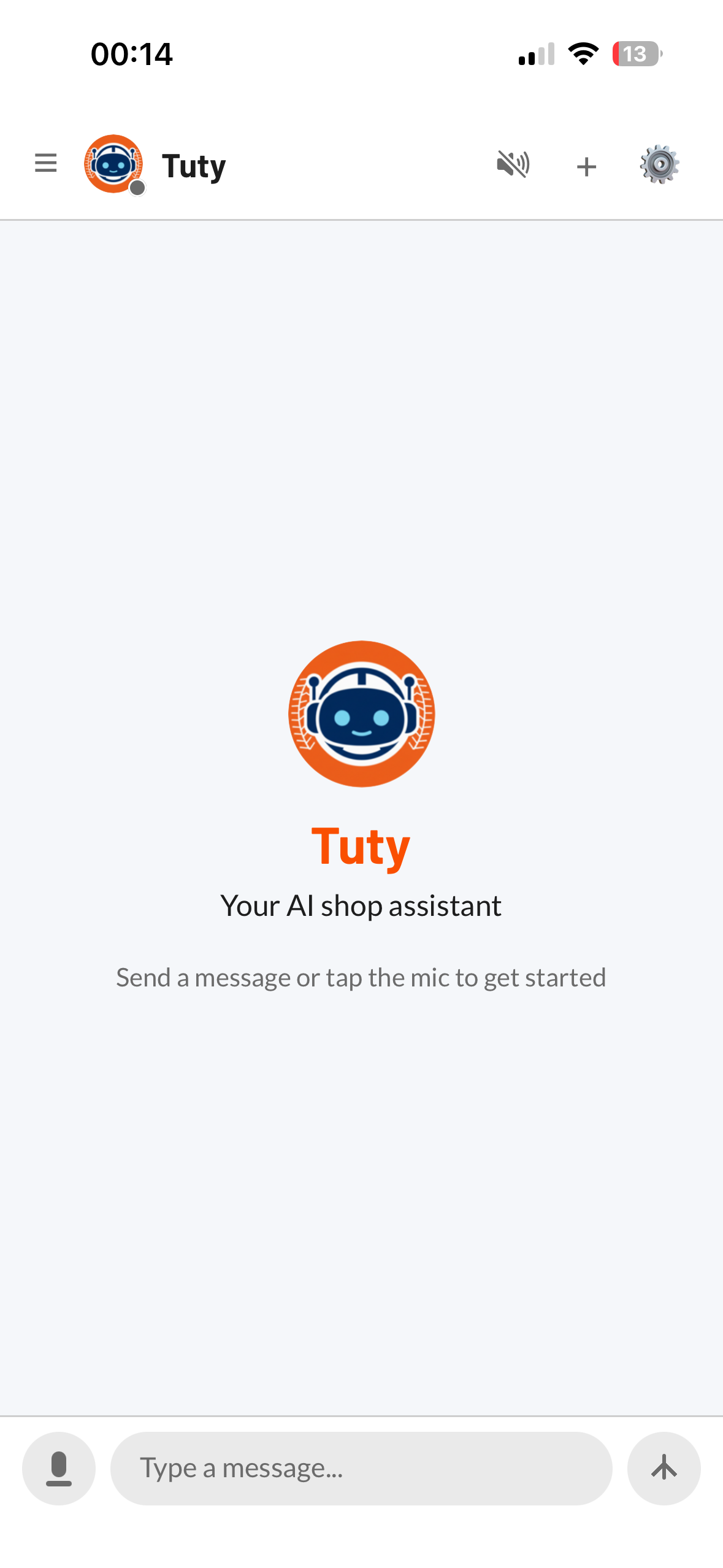
After logging in, you'll land on the chat screen. This is your AI shop assistant — ready to help with work orders, tire searches, estimates, and more.
Tap the microphone button to talk, or type a message in the text field at the bottom.
Common Issues
Quick fixes for the most common setup problems.
dashboard.tiretutor.com first, then try again in the app.