Your First Conversation
You're logged in and ready to go. Let's walk through your first real conversation with Tuty so you can see how it works before a customer walks in.
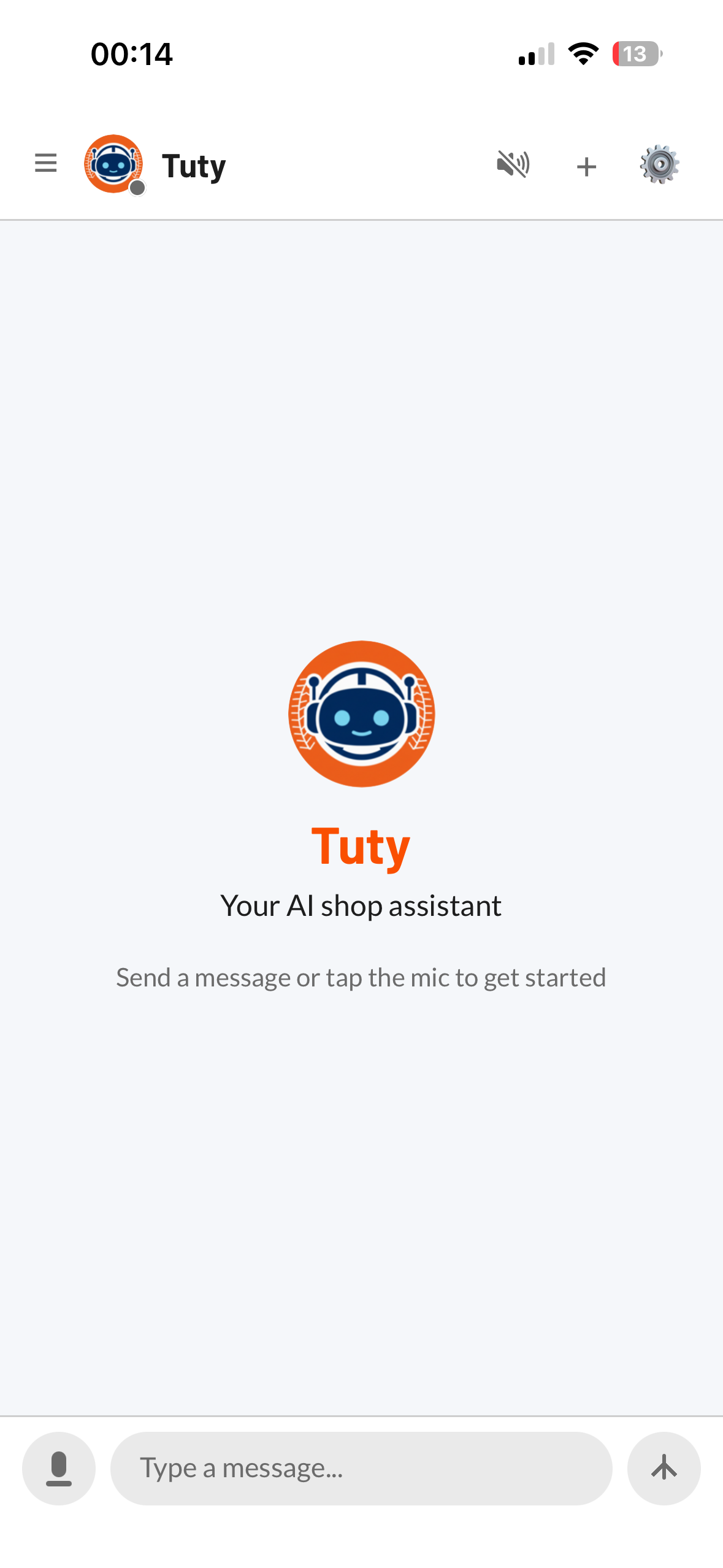
Tap the Microphone
At the bottom of the chat screen, you'll see a microphone button. Tap it once to start talking. You'll see a listening indicator appear — that means Tuty is ready to hear you.
You can also type in the text field if you prefer, but voice is the fastest way to work with Tuty.
Say "Create a Work Order"
Try saying something like:
Tuty will create the work order and ask for any missing details like customer name, vehicle, or services needed.
Watch Tuty Respond
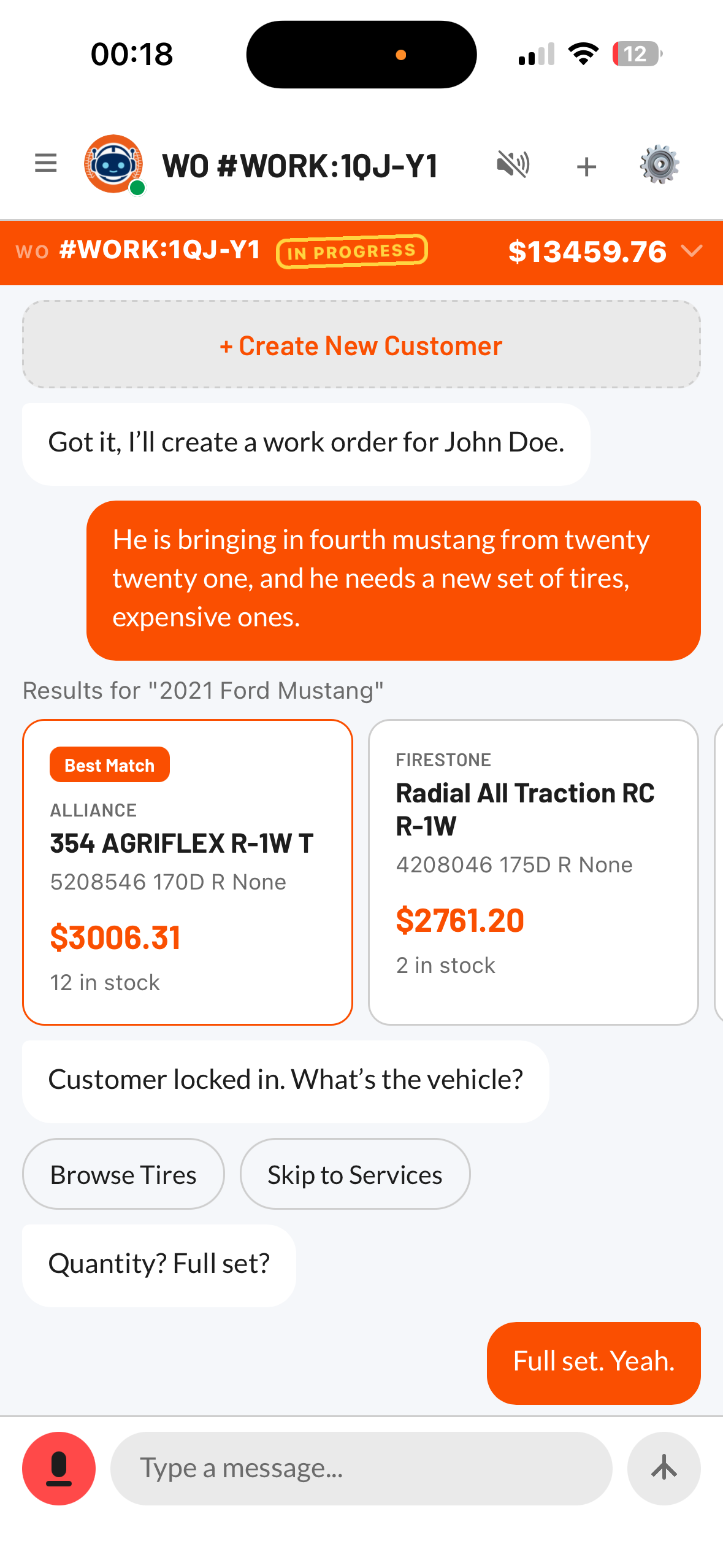
As Tuty works, you'll see messages appear in the chat. Tuty might show you:
- A customer picker if there are multiple matches
- A vehicle selector to confirm the right car
- A work order summary with everything added
Each action Tuty takes shows up as a card in the chat, so you can see exactly what's happening.
Try Searching for Tires
Next, try a tire search. Say something like:
Tuty will pull results from your connected inventory with real-time pricing. You can add tires to a work order directly from the results.
Add Services
You can add services and labor to any open work order by voice:
Tuty adds the service to the current work order and updates the summary automatically.